The code is public
The code is published on GitHub (Apache 2.0 licence): anyone can read it and check that it really does what this page says.
See the source codeArmorzy reads Windows' security settings and looks for known traces of account thieves. Everything happens on your PC: nothing leaves it.
The app is coming soon to the Microsoft Store. To check a file right now, use the checker on the home page: Check a file
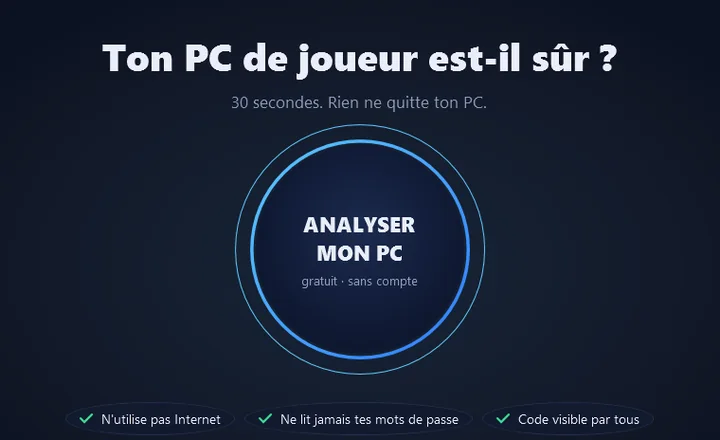
One click. No account to create, no email to give.
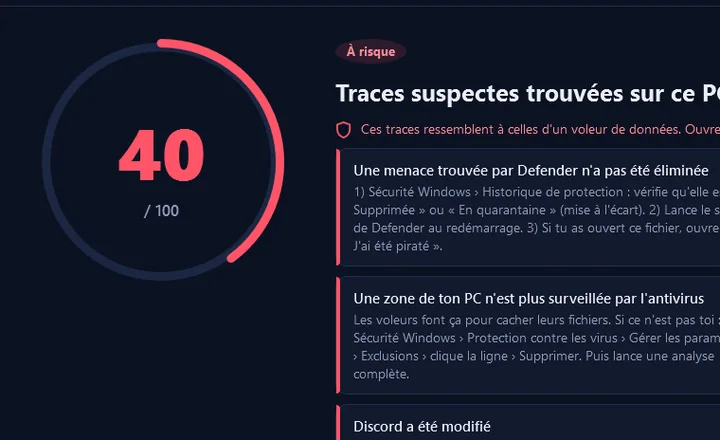
A score out of 100 and the issues found, from most to least serious.
Each issue comes with an explanation and a button that takes you straight to the right Windows setting. You make the change: Armorzy itself changes nothing on your PC.
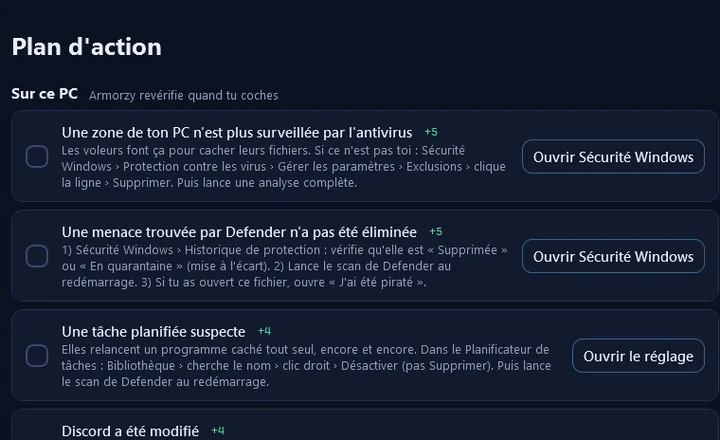
Screenshots of the upcoming app (French version) on a demo PC: the traces are simulated, no real data.
Under the hood
Each one looks for a weak setting or a known trace left by account thieves. When nothing is found, Armorzy says “no known trace found”, never more. Tap a check to see what it looks for.
An antivirus is on and keeps watching your PC all the time.
Its list of known threats is recent.
It stops a program from quietly turning off Microsoft Defender.
What Defender found recently, so you know what to check.
The firewall (Windows' internet filter), or another one, is on.
Your version of Windows still gets security updates.
The last Windows update is not too old.
Windows updates turned off, blocked or paused for a very long time.
Windows asks for your OK before important changes.
Windows' blue warning screen: it warns you before you run an unknown program.
It stops malicious code from loading before Windows starts.
It blocks trapped drivers (programs that run your hardware).
Windows blocks shady apps and booby-trapped downloads (and Edge too, if it's your browser).
Defender scanned your PC less than 2 weeks ago.
Folders recently added to the list your antivirus no longer watches.
What starts on its own when the PC boots, including what's hidden in Windows settings.
Weird programs that Windows restarts at set times.
Windows background programs (“services”) that run a weird program.
Recent programs nobody can tell who made, in your Downloads folder.
A command typical of this trap in the history of the Run box.
The Discord app modified to steal your account.
Hidden rules that force an extension, turn off protection against dangerous sites or send your connection through another computer.
Shortcuts that launch something other than the game or browser, or with other options.
The hosts file (Windows' address book for websites) changed to block security sites or send you to fake sites.
A forced proxy: your connection goes through someone else's computer.
Internet settings that let someone redirect or read your connection.
Programs that let someone control your PC from far away, and Windows Remote Desktop left open.
Nobody changed what Windows opens when you click Settings, Windows Security or a link.
No exact trace of an account thief described in a public report (fake Xeno, Lumma, Katz…).
No downloaded program is stuffed with filler so antivirus tools won't scan it.
No password archive hiding a program in your downloads.
For the “I've been hacked” mode, it also checks which apps are installed (browsers, Steam, Discord…): it just checks that their folder exists, without opening it.
2FA (a code on top of your password) on your accounts (Steam, Discord, Epic Games, Roblox) can't be seen from your PC: you confirm it yourself, and the screen says so clearly.
Proof
A promise isn't enough. Here are four ways to check for yourself.
The code is published on GitHub (Apache 2.0 licence): anyone can read it and check that it really does what this page says.
See the source codeBlock its internet access in Windows Firewall (Windows' internet filter): it works exactly the same, because it never needs the internet.
Not signed yet: the approval will come before the first public release.
Not out yet: version 0.2.0 is not signed yet. We're waiting for SignPath Foundation to approve it so your PC recognizes the file straight away; that will happen before the first public release. To recognize the real file, check these three points: Windows shows “SignPath Foundation” as the publisher (who released the file); under Properties › Details, the product name is “Armorzy”; its SHA-256 code (unique to each file) is the same as the one published on the GitHub releases page. SignPath Foundation also approves other free software: that name alone is not enough. If any of the three points doesn't match, don't run the file: delete it.
Every release has a SHA-256 code, unique to each file, published on GitHub in the SHA256SUMS.txt file. If your file's code is different, don't run it.
Armorzy looks for known traces. A brand-new or well-hidden malicious program can slip past it. A good score means “no known traces and good settings”, never “clean PC”.
The app is not downloadable yet. In the meantime, the threat profiles and help guides are online, for free.